Using CSV and Excel data
This guide walks through using CSV and Excel files as datasources. You will create a datasource, a dataset, and a simple layout that displays the data.
1. CSV datasource
Section titled “1. CSV datasource”Create a datasource for a CSV file under data/sales.csv:
---
apiVersion: bino.bi/v1alpha1
kind: DataSource
metadata:
  name: sales_csv
spec:
  type: csv
path: ./data/sales.csv- Place
sales.csvrelative to the manifest or adjustpathaccordingly. - Use a glob (for example
./data/sales_*.csv) to read multiple files.
CSV reader options
Section titled “CSV reader options”If your CSV uses a non-standard format (for example European number formatting or a
different delimiter), add reader options to spec:
---
apiVersion: bino.bi/v1alpha1
kind: DataSource
metadata:
  name: sales_csv
spec:
  type: csv
  path: ./data/sales.csv
  delimiter: ";"
  thousands: "."
  decimalSeparator: ","
See DataSource reference — CSV reader options for the full list of options.
2. Excel datasource
Section titled “2. Excel datasource”For Excel, use type: excel and point to the file:
---
apiVersion: bino.bi/v1alpha1
kind: DataSource
metadata:
  name: budget_excel
spec:
  type: excel
  path: ./data/budget.xlsx
Depending on your query engine setup, you may use additional options (sheet, range) via the underlying Excel support.
3. Dataset over CSV/Excel
Section titled “3. Dataset over CSV/Excel”Define a dataset that aggregates sales by region:
---
apiVersion: bino.bi/v1alpha1
kind: DataSet
metadata:
  name: sales_by_region
spec:
  query: |
    SELECT
      region,
      SUM(amount) AS total_amount
    FROM sales_csv
    GROUP BY region
  dependencies:
    - sales_csv
4. Simple layout with table and chart
Section titled “4. Simple layout with table and chart”---
apiVersion: bino.bi/v1alpha1
kind: LayoutPage
metadata:
name: sales_from_csv_page
spec:
pageLayout: split-horizontal
pageFormat: a4
pageOrientation: landscape
children:
- kind: Table
spec:
dataset: sales_by_region
tableTitle: "Sales by region"
type: list
- kind: ChartStructure
spec:
dataset: sales_by_region
chartTitle: "Sales by region"
level: category
measureScale: M
measureUnit: "EUR"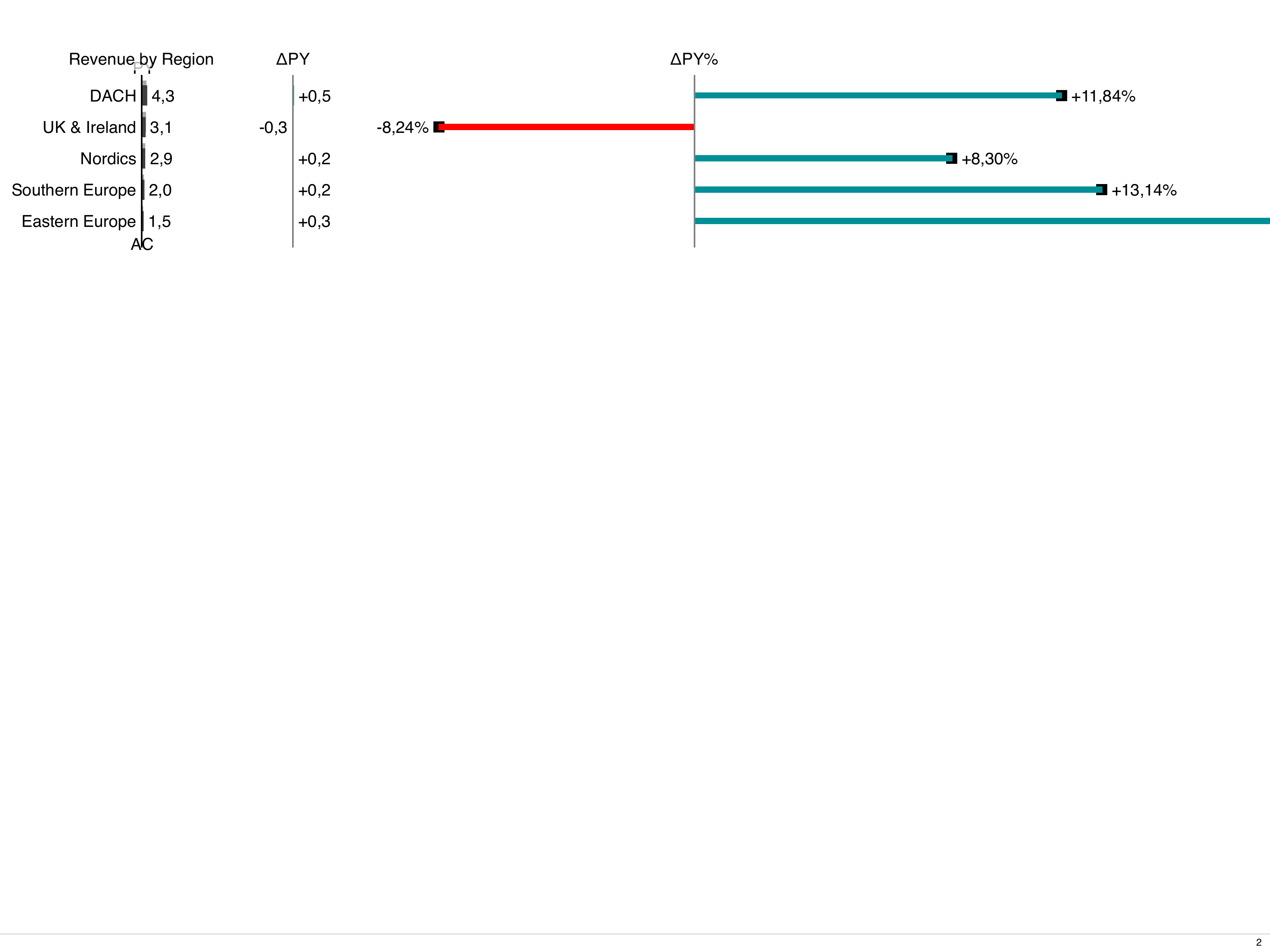
5. Run preview and build
Section titled “5. Run preview and build”From the workdir:
bino preview --log-sqlOnce the result looks good, build the PDF:
bino build